Web Design Tips People Seem to Have Forgotten
10 years ago
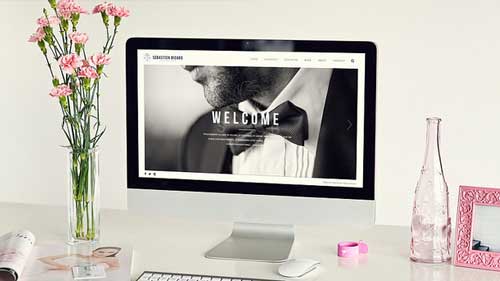
As soon as you get connected to the World Wide Web, you will soon find a seemingly endless number of websites available at your disposal. Among all these billions of websites, what do they have in common? Well, there are not few of them that seem to have been designed by people who have long forgotten the proper web design tips.
Filed under: Tips & Tricks
Tags: clutter, color schemes, forgotten, graphic design, logo, site navigation, web design, web design tips
Internet Marketing Tips to Grow a Small Business to a Large One
10 years ago

With technology advancing at a very fast pace today, businesses – small, medium and large alike – are finding more ways to promote their products and/or services to their target markets. However, for small and even medium businesses, things may not go as smooth as for large scale businesses. This is because small and medium businesses are limited by the budgets and resources they have at hand.
Filed under: Tips & Tricks
Tags: digital marketing, grow small business, internet marketing, internet marketing tips, small business, small business tips
How to Market Your Business Using Vine
10 years ago

When it comes to social media, you may have often heard of Twitter, Facebook and Instagram. Yet, have you heard of Vine before? In case you haven’t, it is a particularly good social video sharing platform that you can use if you are thinking about marketing your business. Vine, for one, is literally the best choice for those audiences that do not have much time to waste.
Filed under: Tips & Tricks
Tags: hashtags, smm, social media, social media marketing, vine, vine marketing
Internet Marketing Tips Small Businesses May Never Think Of
10 years ago

A small business is not a large business and will never be one until it finds out what brings a large business to the top of the success ladder. With today’s internet connection being so easily accessible literally everywhere, it becomes a good idea to harness the benefits of content marketing. No, this is nothing like the old-fashioned direct response advertising.
Filed under: Tips & Tricks
Tags: internet marketing, internet marketing tips, small business, small businesses, success stories
Creating a Landing Page That Impresses
10 years ago

When it comes to designing a website, there are in fact quite an enormous number of things that web designers are supposed to pay attention to. Yet, quite unfortunately, it seems that more and more web designers are beginning to forget about the essentials of designing a website. One thing that is of utmost importance in designing a website is the landing page of the site.
Filed under: Tips & Tricks
Tags: a/b test, a/b testing, conversions, landing page, landing page tips, ppc, seo, web design, web design tips
Increase Your Website Traffic with These 4 SEO Tips
10 years ago

There are literally billions, or perhaps even trillions, of websites spread across the World Wide Web these days. As such, it becomes utterly important to figure out how yours is going to get found among all those swarms of websites. Of course, the first thing that matters is certainly the contents you have available on your page.
Filed under: Tips & Tricks
Tags: increase website traffic, seo, seo tips, website traffic, website visitors
How to Create a Killer LinkedIn Profile
10 years ago
Unless you have been living in a cave for the past few years, you should definitely know that social media have become the key towards success these days. This is even more so if you deal in online businesses. Without a social networking site to count on, you may not have any media of promoting your products and/or services.
Filed under: Tips & Tricks
Tags: killer profile, linkedin, linkedin profile, profile, profile creation, social media, social media marketing
40% OFF Leap Year Deals for 1,000,000 Points and Business Plan!
10 years ago

This month, we celebrate the Leap Year which adds an extra day to February to keep the calendar synchronized with the seasonal year. This only happens every four years! Give your business or website a leap in visitors with 40% OFF 1,000,000 Points Booster Pack or Business plan when you place a new order! Use the promo code below:
LEAP40
For a limited time only, you can get 1,000,000 points for $40.8 or Business plan for $17.4 for the first month. You can SAVE $27.2 or $11.6 on each order! This special offer is active now and will expire on Leap Day (February 29th).
Filed under: Tips & Tricks
Tags: 10khits, booster, booster pack, business, business plan, coupon, discount, leap year, promo code, promotion, special
Innovative SEM Tips That Won’t Harm You Trying
10 years ago
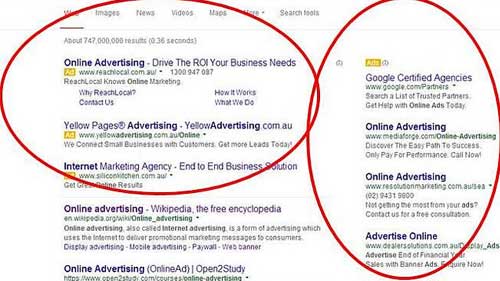
Before, there was SEO and now, there is SEM. Whereas SEO stands for Search Engine Optimization, SEM stands for Search Engine Marketing. Just like in the case of SEO, SEM can also help you see your business flourish or doomed. Of course, nobody prefers the latter.
Filed under: Tips & Tricks
Tags: innovative, search engine, search engine marketing, sem, sem tips, tips
Exchange Network Crashed
10 years ago
We are noticing some congestion with our Exchange Network. Please be patient while we investigate the issue.
Incident History
- 1:05 PM – Solved. Technicians will continue to monitor network.
- 12:00 PM – Network congestion subsided. Setting up prevention techniques for abuse.
- 11:08 AM – Mitigating multiple user abuse with Exchange Network.
- 11:05 AM – Investigating issue with server.
- 11:00 AM – Exchange Network crashed.
Filed under: Tips & Tricks