How do I increase app installs with Facebook Ads?
10 years ago
App installs is a way to drive installs to your mobile app. When a user clicks on the “Use App” button on your ad, it will redirect to the Google Play or App Store page for users to install your app. Go to your Facebook page after you have logged on and click “Build Audience” at the top right of your page. Click on “Use Ads Manager” and click “Create Ad” at the top right of your page. Click on “App Installs” from the list.

Enter the app’s URL as you see it on Google Play or App Store. You can add up to 6 different images for your ad and 90 characters of text.

For audience target, you’ll see that it will be a little different from before. You can choose which mobile platform to target: Android only or iOS only. You can also select which wireless connection you want to target such as: All mobile users or Wi-Fi only. Once you are done configuring the target audience, set a campaign budget and click “Place Order”.

To keep track of app installs, you’ll need to complete two things:
1. Register your app on Facebook
2. Add the Facebook SDK with a mobile measurement company
For more information on registering your app on Facebook and adding Facebook SDK, go to: https://developers.facebook.com/docs/ads-for-apps/mobile-app-ads
Filed under: Documentation→Social Media Marketing
Tags: app installs, cpc, facebook ads, ppc, social media marketing
How do I gain app engagement with Facebook Ads?
10 years ago
Mobile app engagement ads take users to a customized location within your app. These engagement ads have a call to action button such as scheduling an appointment, buying a product, or unlocking a level in a mobile game. This is similar to the website conversions ad we talked about earlier except it’s dealing with mobile apps.
Before you start your campaign, you must register your app and configure the app settings. For more information on this go to: https://developers.facebook.com/docs/ads-for-apps/mobile-app-ads-engagement
When you’re ready to start a new campaign, go to your Facebook page after you have logged on and click “Build Audience” at the top right of your page. Click on “Use Ads Manager” and click “Create Ad” at the top right of your page. Click on “App Engagement” from the list.

Insert your app URL from Google Play or the App Store and click continue. Choose your audience, set a budget and place your order.
Filed under: Documentation→Social Media Marketing
Tags: app engagement, facebook ads, social media marketing
How do I drive responses to my event on Facebook?
10 years ago
Event responses ads are ads that help drive responses to your event. If you’re holding a party, an open house, etc. these ads may be used to target people around your area and to see how many users on Facebook are planning to go to your event. For example, a user can click on the “Join” link on your ad and it will display the amount of people who are going to your event e.g. “25 people are going”.
First you would need to create an event or offer by going to your Page’s Timeline and clicking Offer, Event + and select Event. Fill out the name and details of the event and click Create.

Go to your Facebook page after you have logged on and click “Build Audience” at the top right of your page. Click on “Use Ads Manager” and click “Create Ad” at the top right of your page. Click on “Event Responses” from the list. Select the event you want to promote and fill out the audience target, set a budget and place your order.
Filed under: Documentation→Social Media Marketing
Tags: event responses, facebook ads, social media marketing
How do I promote an offer on Facebook?
10 years ago
If you haven’t already created an offer on your Page’s Timeline, click Offer, Event + button and click Offer. Fill out the details and select the expiration date for your offer and click Create.

Go to your Facebook page after you have logged on and click “Build Audience” at the top right of your page. Click on “Use Ads Manager” and click “Create Ad” at the top right of your page. Click on “Offer Claims” from the list. Select the page where you posted your offer and in the second box select the offer you want to promote. Choose your audience target, set a budget and place your order.
Filed under: Documentation→Social Media Marketing
Tags: facebook ads, offer ad, offer claims, social media marketing
How do I gain views for my video on Facebook?
10 years ago
Facebook has an ad type called Video Views. Video view ads allows you to promote your brand using a video.

Go to your Facebook page after you have logged on and click “Build Audience” at the top right of your page. Click on “Use Ads Manager” and click “Create Ad” at the top right of your page. Click on “Video Views” from the list. Select the page you want to promote and click Continue. Upload a video for your ad. It is recommended to use .MOV files with 1080p resolution and aspect ratio of 18:9. The file size can be up to 1GB. You should also add text and links to your video ad. Choose your target audience, set a budget and place your order.
Filed under: Documentation→Social Media Marketing
Tags: facebook ads, social media marketing, video views
How do I sign up to Twitter ads?
10 years ago
After logging into your Twitter account, go to http://ads.twitter.com for a one time set up. Set your permanent country and time zone.

Click the “Personally save these settings” button to continue. On the next page you may see a message at the top of the page that says your account is ineligible for Twitter ads. If you see this message, you can contact Twitter support to tell them that all your tweets are in English and that you wish to use their ad service. Since Twitter ads are still under development, it only gives access to certain accounts that fit the criteria. Usually, an account is denied access because Twitter has marked your account as non-English.

If you don’t see this message, you can move ahead and click on one of the campaign objectives below to set up your first ad campaign.

Filed under: Documentation→Social Media Marketing
Tags: cpc, ppc, social media marketing, twitter ads
How do I promote my tweets on Twitter ads?
10 years ago
After you have setup your ads account, go to http://ads.twitter.com. Click on the “Create new campaign” button on the top right and select “Promoted tweets”.

On the next page, pick a campaign name and select when you want to run the campaign. You can run the campaign continuously or start/stop it at certain dates. We recommend running the ad continuously since you can pause the campaign any time you like.

The next step is selecting your primary method of targeting. You can choose to target your audience by keywords, by interests and followers, by television shows or by tailored audiences.

With keywords, you can target a broad range of people who have tweeted about your keywords. With interests and followers, you can target people who follow your competitors. This is a good way to increase your brand awareness to those who are most likely to convert. All you would do is input the usernames of your competitor’s Twitter accounts. Television is a way to promote your tweets to those who watch certain TV shows like CNN News. Tailored audiences are for reaching people from your own data like e-mail lists or website visitors.
We recommend targeting interests and followers. As you learn more about Twitter ads, you can experiment with the other options.
Once you have set the audience targeting, you can set where you want your promoted tweets to appear, which devices to show up on, target by gender and language. Select the tweets you want to promote or choose the automatic promote option. The automatic promote option will promote the last 5 most engaging or recent tweets you’ve made. Set a total or daily budget and run the campaign.
Filed under: Documentation→Social Media Marketing
Tags: cpc, ppc, promoted tweets, social media marketing, twitter ads
How do I gain followers on Twitter ads?
10 years ago
Other than engaging users with interesting tweets and building relationships to gain followers, you can also promote your account using Twitter Ads. Select the Followers (Promoted Account) from the Create new campaign drop down button.
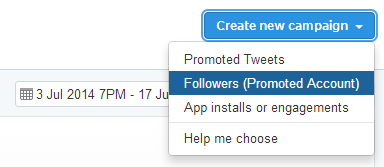
On the next page, pick a campaign name and select when you want to run the campaign. You can run the campaign continuously or start/stop it at certain dates. We recommend running the ad continuously since you can pause the campaign any time you like.
The next step is selecting your primary method of targeting. Unlike promoted tweets with four targeting options, you can only choose between targeting your audience by interests and followers or by tailored audiences for promoted account.
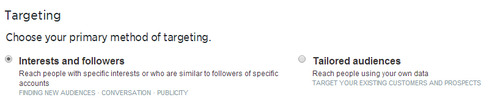
With interests and followers, you can target people who follow your competitors. This is a good way to increase your brand awareness to those who are most likely to convert. All you would do is input the usernames of your competitor’s Twitter accounts. Tailored audiences are for reaching people from your own data like e-mail lists or website visitors.
We recommend targeting interests and followers. As you learn more about Twitter ads, you can experiment with the other options.
Once you have set the audience targeting, you can set the locations you want to reach (United States, Canada, etc), target by gender and language. The next step will be telling users why they should follow your account. You can use a tweet you’ve already created or create a new tweet that will convince them to follow you. Set a total or daily budget and run the campaign.
Filed under: Documentation→Social Media Marketing
Tags: promoted account, social media marketing, twitter ads, twitter followers
How do I increase app installs or engagements on Twitter ads?
10 years ago
Go to the Twitter ads platform and click on the “Create new campaign” button on the top right and select “App installs or engagements”.

On the next page, pick a campaign name and set up conversion tracking for your mobile app. To learn more about how to set up conversion tracking go to: https://support.twitter.com/articles/20171742 under “Measurement & Optimization”.
Select when you want to run the campaign. You can run the campaign continuously or start/stop it at certain dates. We recommend running the ad continuously since you can pause the campaign any time you like.

The next step is to decide whether you want to optimize the ad so that people will install your app (App Installs) or use your app (App Engagements).

Next select the app you want to promote from the drop down. If you don’t have an app registered on Twitter yet, you can create one by clicking “Add new app”. Insert your App ID from the App Store or Google Play.
Then create an app card to promote your app. An app card is similar to a photo tweet but it also shows an install button to users as well. Here is an example of an app card:

You must select your primary method of targeting after. You can choose to target your audience by keywords, by interests and followers, by television shows or by tailored audiences.

With keywords, you can target a broad range of people who have tweeted about your keywords. With interests and followers, you can target people who follow your competitors. This is a good way to increase your brand awareness to those who are most likely to convert. All you would do is input the usernames of your competitor’s Twitter accounts. Television is a way to promote your app to those who watch certain TV shows like CNN News. Tailored audiences are for reaching people from your own data like e-mail lists or website visitors.
We recommend targeting interests and followers. As you learn more about Twitter ads, you can experiment with the other options.
Once you have set the audience targeting, you can set a total or daily budget and run the campaign.
Filed under: Documentation→Social Media Marketing
Tags: app engagements, app installs, cpc, ppc, social media marketing, twitter ads