What is SEM?
10 years ago
Search Engine Marketing is the process of acquiring targeted traffic by buying ad listings on search engines. It is sometimes called PPC marketing or CPC marketing. It is a quick and fast way to rank your website for keywords you want to target. With SEO, it may take you a few months or a year to rank up your website on the first page for a keyword, but with SEM you can create your ad and it will be live within a few minutes. Usually, advertisers only have to pay when they receive a click. This is called PPC/CPC or Pay-Per-Click/Cost-Per-Click advertising. Google Adwords is the largest PPC advertising network. Adwords uses a ranking system called Ad Rank that decides which ads will hold the first position, the second position and so forth. There are many factors that make up the Ad Rank. It’s not just about who bids the highest but it also involves your expected click-through rate, landing page experience, ad relevancy, easy site navigation, transparency, ad formats and more. For more information on Adwords Auction, watch this video:
Filed under: Documentation→Search Engine Marketing
Tags: search engine marketing, sem
What are keyword match types?
10 years ago
There are four different match types in Adwords: [exact match], “phrase match”, broad match and – negative match. Exact matches will only display your ads when users are searching for the exact keyword. For example, if you bid for an exact match on [pink cupcakes] it will only display your ad when someone is searching for exactly “pink cupcakes”. Phrase match is when a user searches for a phrase that includes your keyword such as “pink cupcakes for sale” or “pink cupcakes recipes”. Broad match is when a user search for query that includes one word from your target keywords such as “cupcakes are delicious” even though you have set the broad match keyword to “pink cupcakes”. There is also negative match which will exclude your ads from showing up for users who may have searched for something you don’t want to target. For example, if you have a cupcake business and you want to target people who will buy your cupcakes you can exclude the word “recipe” so users who are looking to bake their own cupcakes won’t see your ad.
Exact match keywords will have the most efficiency because it targets users you really want but has less volume of searches. Phrase match keywords will have more volume but will be less efficient than exact match keywords. Finally, broad match is the least efficient but has the most volume.
Filed under: Documentation→Search Engine Marketing
Tags: keyword match types, search engine marketing
What is ad relevancy?
10 years ago
Ad relevancy is how relevant your ad is to what the user is searching. Ad relevancy is a very important factor to increase your click-through rate, ad rank, ad position and conversions. When someone searches for “coffee beans” it will do no good to have a tea shop showing up in the results. The chances of you getting a sale will be very low. But what if your tea shop sells coffee beans too? If this is the case, you can make your ad relevant by creating a landing page that only displays a list of coffee beans for sale on your tea shop website. In the end, you want your landing page to be as relevant as possible to the keyword because consumers already know what they want to buy when they are searching for something. You should try not to send users to your homepage either because most likely the keywords you’re targeting are only a small portion of your website. For example, if you’re an auction website like eBay and you link all your ads to your homepage for every keyword the users you are targeting will get irrelevant results. When they search for “car parts”, they might see e-books, watches, t-shirts, laptops and other things on the eBay homepage. Rather than doing this, you’d want to link it to the eBay Motors category or better yet create a landing page that will increase the likeliness for a call-to-action like scheduling a free check-up for your car at a dealership.
Filed under: Documentation→Search Engine Marketing
Tags: ad relevancy, google adwords, search engine marketing
What are ad campaigns?
10 years ago
Ad campaigns consist of ad groups. In Adwords, campaigns allow you to choose the campaign types such as showing your ads on search and/or display networks. It also allows you to set the geo-targeting, whether you want to target people in Australia or United States. Maybe your website is only in one language. You can set which languages you want to target such as people who speak English or French. You can also set your bid for mobile devices. For example, if your website is not mobile friendly, you may put a -100% for mobile so your ads won’t show up for users who are on their mobile device.
Filed under: Documentation→Search Engine Marketing
Tags: ad campaigns, google adwords, search engine marketing
What are ad groups?
10 years ago
An ad group is a set of keywords, ads and bids you group together. Ad groups help you organize your campaign and separate the different types of services or products you provide. It is not good to have one campaign with one ad group that contains 500 keywords in it. It’s better to have many ad groups so that you can target and check the performance of each group that runs. A good metaphor for this would be if an ad campaign is a photo folder, ad groups would be subfolders within that folder that could be “my vacation photos” folder and “birthday photos” folder. The files within the subfolders are the actual ads.
Filed under: Documentation→Search Engine Marketing
Tags: ad groups, google adwords, search engine marketing
What are keywords?
10 years ago
Keywords are the search terms you want to target. They are set within the ad groups. In Adwords, you can choose which match type: exact, phrase, broad or negative and set the maximum amount you’d like to pay for each keyword (Max CPC). For each ad group, it is good to have 12-24 keywords.
Filed under: Documentation→Search Engine Marketing
Tags: google adwords, keywords, search engine marketing
What are ads?
10 years ago
Ads are set within the ad groups just like keywords are. The ads must be relevant to the keywords you’ve set. You should always have a few different ads within an ad group to see which ad performs best for your keywords. Whether it’s text only or image ads, it is good practice to have at least 3 different ads to start off with. You can add more if you like but don’t add too many. The ads that have the highest click-through rate (CTR) should be keepers and those who perform poorly should be disabled and removed.
Filed under: Documentation→Search Engine Marketing
Tags: ads, google adwords, search engine marketing
How do I create my first campaign in Google Adwords?
10 years ago
After you have logged on to your Adwords account, click on the orange “+ Campaign” button to add your first campaign.

You can choose which network you want to target. In our example, we’ll choose Search network so that our ad will show on Google search. There are also display network which will show your ads on partner sites. You can also use the other options available but we recommend starting your campaign with Search or Display only.
The next steps are listed below in order:
1. Give your campaign a name.
2. Select the campaign type. It’s good to keep it at Standard.
3. Select network. Including search partners is ok.
4. Device compatibility will automatically be detected so you can skip this step.
5. Which locations do you want to target or exclude? I’ll check United States.
6. Select the languages you want to target.
7. Choose your bidding strategy. For now, we can set it for “I’ll manually set my bids for clicks”.
8. Set a default bid (max CPC). You should set a default bid so that you don’t pay too much for a click.
9. Set a daily budget. How much are you willing to spend per day?
10. Finally, you can add ad extensions so that your ads look more appealing/contains additional information.
Click the “Save & Continue” button. Congratulations! You have created your first campaign! The next process is creating your first ad group.
Filed under: Documentation→Search Engine Marketing
Tags: ad campaign, adwords, search engine marketing
How do I create an ad group in Google Adwords?
10 years ago
After you have created your campaign, the next step is naming your ad group and creating your first ad for the group. Here is an example of ad we created for booking Las Vegas hotels.

After you have created your campaign, the next step is naming your ad group and creating your first ad for the group. Here is an example of ad we created for booking Las Vegas hotels.

1. Insert your display URL. The display URL is what users will see in green font. It’s not where your ad will send them too when it’s clicked. Ideally you should display the domain name with the keyword in it:http://lvhotels.com/Las-Vegas-Hotels and make sure it redirects to the landing page you want. You can also just leave your domain there: http://lvhotels.com for branding purposes.
2. The destination URL is where you will place the landing page URL. The landing page should have a call-to-action like subscribing for a service, subscribing to a newsletter, signing up for an account, etc.
Next is to add keywords to your ad. Google will recommend you a list of keywords for your ad but you should avoid using them since they are not the best keywords to go for. Some of the keywords that were suggested by Google may be overpaid keywords. It is important to do your own keyword research to find the best keywords for your ad.
Some examples of keywords we would use for our Las Vegas Hotels ad would be: book las vegas hotel rooms, las vegas 5 star hotels, las vegas hotels, las vegas hotel rooms, book hotel rooms in las vegas. When adding your keywords you can wrap the keyword with brackets if you want exact match or quotes for phrase match. E.g [las vegas 5 star hotels] or “las vegas 5 star hotels”.
Another way of adding keywords for a business like this would be to set the geo location to Las Vegas and adding keywords like 5 star hotels, hotel rooms, book hotel rooms, etc. so that you only target people in Las Vegas who probably want to book a hotel immediately. This is one way to improve your conversions and also see a higher volume of ad impressions.
You can add additional ad groups to your campaign by going to your campaign and clicking the “+ Ad Group” button. You can also duplicate your ad group, keywords, etc. by copy and paste. This is useful feature for when you want to substitute a keyword like “hotel” with “casino” in another ad group. To duplicate an ad group, go to the ads tab and check mark the ad. Then click on the “Edit” drop down menu and select Copy then select Paste. You can also use Ctrl+c and Ctrl+V.

Filed under: Documentation→Search Engine Marketing
Tags: ad group, ad groups, Google Analytics, search engine marketing
How do I keyword research for SEM?
10 years ago
Similar to SEO, we will use the Google Adwords Keyword Planner tool for keyword research in SEM. There are also other tools you can use such as Wordtracker or Wordstream but Adwords Keyword Planner is the de facto standard tool.
https://adwords.google.com/KeywordPlanner
You can also access the tool within Adwords by clicking on Tools at the top of the page and selecting Keyword Planner. Once you are on the Keyword Planner tool, select “Search for new keyword and ad group ideas”.
You can get keyword ideas in 3 different ways:
1. By inserting a list of keywords separated by commas (recommended)
2. By adding your landing page or your competitors’ landing page URL
3. By product category
Once you have done one of the above and clicked the “Get Ideas” button, you’re going to want to navigate to the Keyword Ideas tab to view a list of keywords with its avg. monthly searches volume, competition level (low, medium, high), suggested bid and ad impression share. Keep in mind that the avg. monthly searches volume is not the exact figure and the suggested bid is only an estimate. Nonetheless, it’s good to compare keywords by looking at the avg. monthly searches. If you see one keyword that has higher avg. monthly searches than another keyword, it could mean that the keyword is more competitive.
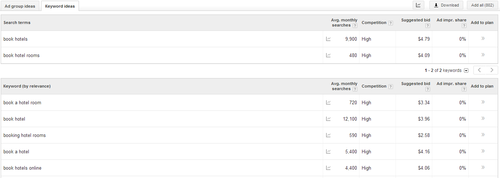
Comb through the list and copy and paste the keywords that are relevant to your website in an excel sheet. Once you have a comprehensive list of keywords, you can copy and paste it back into the Adwords Keyword Planner to get even more ideas. You can also check mark the keywords you want and download the list by clicking the Download button at the top right of the table. Rinse and repeat until you think you have all the keywords you need.
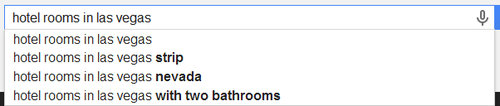
You can also find related keywords by doing a search of your keyword on Google and getting the keywords from the suggested dropdown.
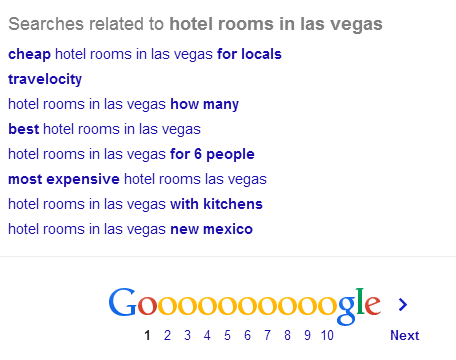
For even more keyword ideas, you can scroll down to the bottom of the page after you have searched your keyword. There will be a related searches list above the bottom pagination.
Filed under: Documentation→Search Engine Marketing
Tags: cpc, keyword research, ppc, search engine marketing