Do you store my payment information on your website/server?
10 years ago
All payments are handled by trusted third party payment processors such as PayPal and Payza. We do not store any payment account information on our server besides transaction id, payment method and payment date. We use transaction id for your billing history and our reference only.
Filed under: Documentation→Getting Started
Tags: billing history, getting started, payment information, security
How do I join the referral program?
10 years ago
You do not need to sign up to the referral program. All members will be given a referral link that they can share with others to start earning commission points. To view your referral link, click on Referrals tab on the left sidebar of the dashboard after logging into your account.

At the top of the page, you’ll find your referral link and referral points earned. For every person who joins and installs 10KHits Exchanger on their computer, you will receive a commission of what they’ve earned from surfing. If you need a higher commission rate or more points, consider upgrading your account or purchasing booster packs.

Filed under: Documentation→Getting Started
Tags: getting started, referral, referral link, referral points, referral program, referrals
How are referral points awarded?
10 years ago
The amount of referral points you’ll earn depends on how many referrals you have and which plan you are on.
Basic accounts earn 5% of points earned from referrals.
Pro accounts earn 10% of points earned from referrals.
Business accounts earn 15% of points earned from referrals.
Deprecated accounts earn 2% of points earned from referrals.
Filed under: Documentation→Getting Started
Tags: commission, getting started, referral, referral commission, referral points, referral program
How do I check or redeem my referral points?
10 years ago
To check or redeem your referral points, go to the Referrals tab on the left side bar of the dashboard.
At the top of the Referrals page, you will see a “Referral Points Earned:” with the number of points you have accumulated from referrals beside it. If it is above 0, you will see a redeem button by it. Click the redeem button to get your referral points added to your total Points Balance!

Basic accounts earn 5% of points earned from referrals.
Pro accounts earn 10% of points earned from referrals.
Business accounts earn 15% of points earned from referrals.
Deprecated accounts earn 2% of points earned from referrals.
Filed under: Documentation→Getting Started
Tags: getting started, redeem, referral points
Can I transfer points from one account to another?
10 years ago
No, points are non-transferrable among accounts.
Filed under: Documentation→Getting Started
Tags: getting started, points, transfer points
Do you offer bigger plans than the Business plan?
10 years ago
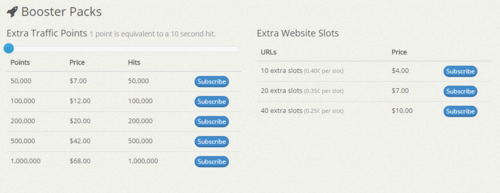
The biggest plan we offer is our Business plan however you can scale it by adding multiple booster packs to make your plan as big as you’d like. For example, you can buy the Business plan and purchase 5 booster packs of the 40 extra URL slots and 5 booster packs of the 1,000,000 extra points. As long as you are subscribed to these booster packs, you’ll have 200 extra URL slots and 5,000,000 points on top of your Business account every month.
To buy booster packs go to the Upgrades tab from the left sidebar of the dashboard and scroll to the bottom of the page. Click on the Subscribe button of the booster pack you want to purchase and pay using one of the payment systems available.
Filed under: Documentation→Getting Started
Tags: bigger plans, booster, booster packs, extra points, extra slots, getting started, packs, traffic points, upgrades, website slots
Can I open multiple accounts for personal and business use?
10 years ago
You are allowed 3 accounts per IP address however, we may suspend your accounts or URLs if we believe you are abusing our system.
Filed under: Documentation→Getting Started
Tags: account, accounts, getting started, multiple, multiple accounts
How can I submit a testimonial to 10KHits?
10 years ago
Please log into your account and go back to our homepage. Scroll down to the “What People Say” section. Here you will see a button that is only displayed when you are logged on. Click on “Submit your testimonial” button.
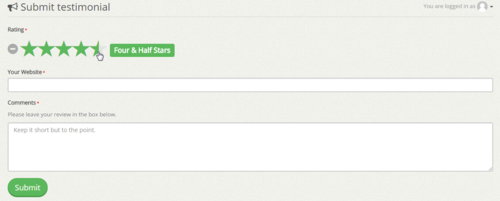
Give a rating, input your website URL and review our service then click the submit button. We will handpick the testimonials to be featured on our homepage. Featured testimonials will display your review including your website URL. We may also reward points for your testimonials.
Filed under: Documentation→Getting Started
Tags: getting started, reviews, submit testimonials, testimonial, testimonials
Am I automatically charged at the end of every 30 days?
10 years ago
If you are still subscribed to our service, you will be charged after 30 days on a month-to-month basis. All of our upgrade plans as well as our booster packs are 30 day subscriptions but you can cancel the subscription any time you like in Paypal or Payza. If you are only looking for a one time purchase be sure to unsubscribe any time during your first month.
Filed under: Documentation→Getting Started
Tags: • getting started • automatically charged • subscription
Can I pay months in advance?
10 years ago
No, we only allow month-to-month payments. If you’d like to keep using our service, you’ll need to keep the automatic subscription payments active and pay on time at the end of 30 days.
Filed under: Documentation→Getting Started
Tags: advance pay, getting started, subscription